Digital Signatures
Introduction
By digitally signing a document you are providing a mathematical way for you and others to verify the signed documents authenticity. pdfMachine creates signatures that adhere to the PDF specification on signatures. Readers such as Acrobat Reader natively support digital signature verification.
A full explanation of digital signatures is beyond the scope of this help file, but numerous explanations are available
on the internet. e.g.
http://www.google.com.au/search?hl=en&ie=UTF-8&q=digital+signature+explained&meta=
To create a signature, you need a digital certificate. A digital certificate establishes your identity. pdfMachine uses Certificates that are present in your Windows Personal Certificate Store.
You can get Certificates from Certificate Authorities (CA's). CA's are companies or
organizations that generate Certificates and allow you to install them on your PC.
pdfMachine also allows you to make your own certificates, which are called "Self signed"
certificates.
If you don't have or want a certificate take a look at pdfMachine sign here.
Methods - 2 ways to sign a PDF
Method 1:
When enabled from the options, pdfMachine will automatically place a digital signature in PDF files as they are
generated by printing to the pdfMachine printer. This is the "sign everything" approach.
Method 2:
If invoked from the pdfMachine Tools menu, the digital signature will only apply to the current document.
Note: If a password is required to access the private key, pdfMachine ultimate has a feature 'Set Crypto Password' where a password is remembered.
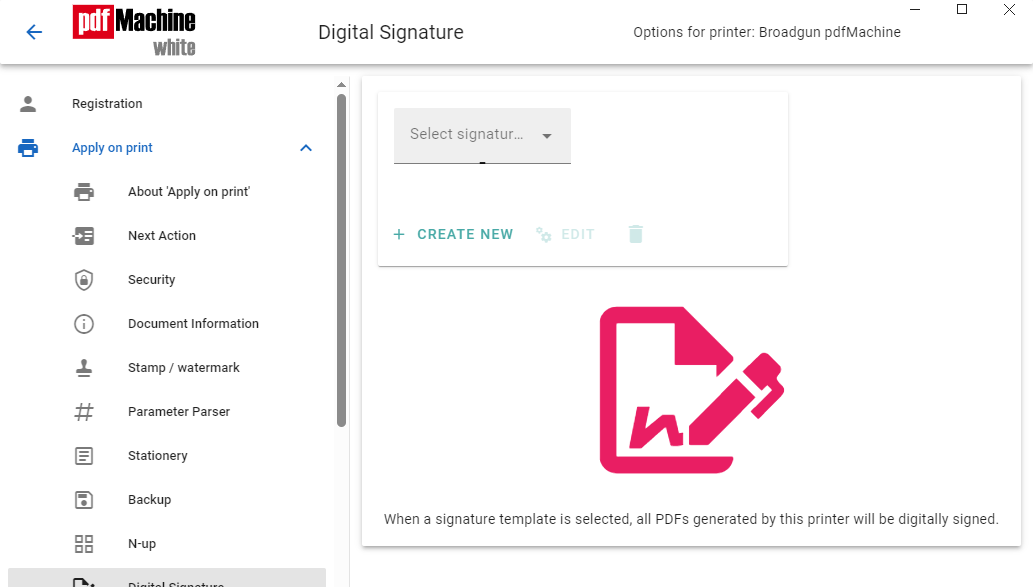
| Select | When clicked, a dialog showing all the certificates that can be used for signing is
displayed.
pdfMachine Signing Server Certificate Store This is a list of certificates that reside on pdfMachine servers that you can use to sign your PDFs. This works without sending the PDF to the pdfMachine servers. Only a 20 byte "message digest" of the PDF is sent to the server, where it is signed and time stamped. The signature is then sent back to the client machine to and inserted into the PDF. Windows Certificate Store
|
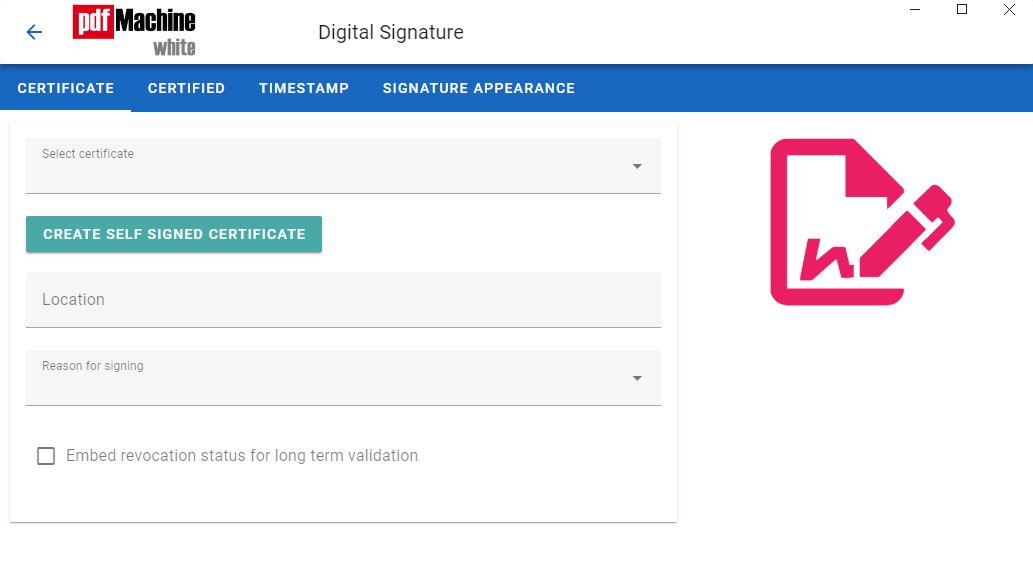
| Create New | When clicked, the following dialog is displayed, allowing you to create your own self
signed certificate.
|
| Location | Optional. Text is placed in the signature. Usually a city or town.
|
| Reason | Optional. Text is placed in the signature. Select or type in a reason for signing. This
option is not available if server signing is enabled.
|
| Certified Document | If enabled, the document is said to be "Certified". A Certified PDF is a
digitally signed PDF that makes its signed status more obvious. When a certified PDF is viewed in Adobe Reader, a
dialog box will automatically appear showing the document status, such as the following:
A Certified PDF can have the following document rights set: * no changes allowed
These rights will be adhered to by PDF editors such as Adobe Acrobat.
|
| Time Stamp Authority | A space separated list of Time Stamp Authority server URL's.
If more than one URL is in the list, Time Stamp Requests are load balanced between servers in the list. If a server is down, the next in the list is attempted.
What is a Time Stamp Authority (TSA) ?
|
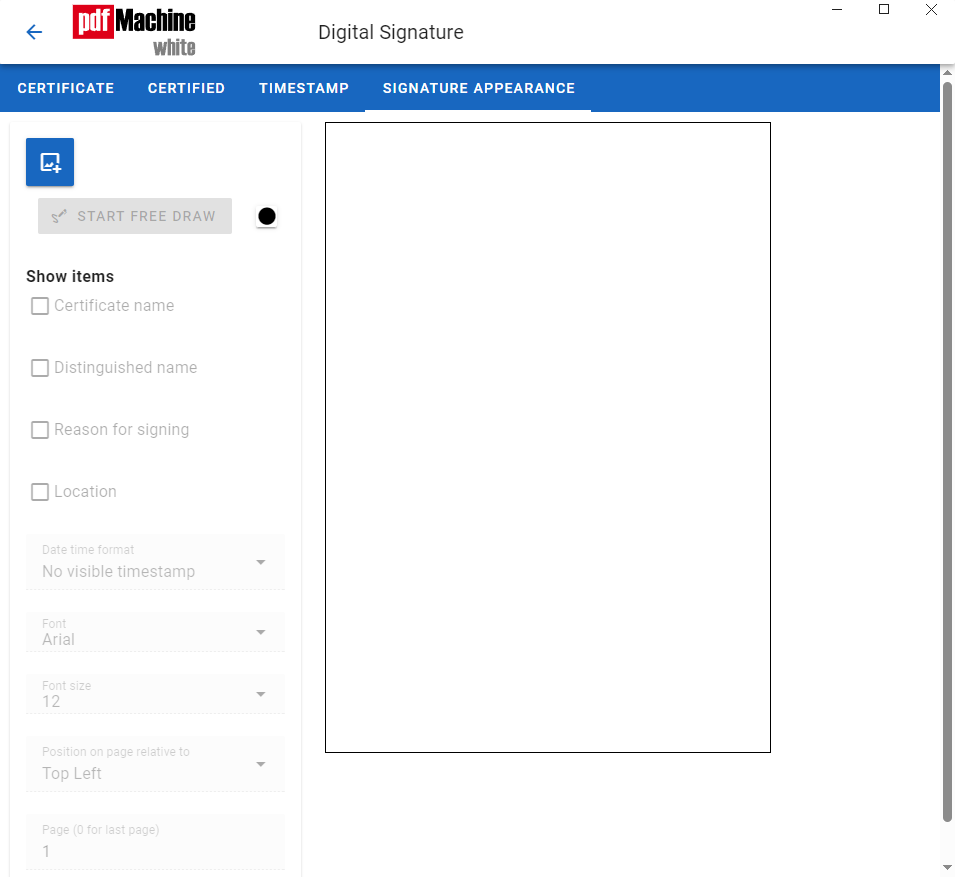
| Show Items | Allows the user to choose what items will be visible in the document. otherwise the signature will only be visible in the "signature tab" of the reader software. |
| Image File / Stamp | Insert a stamp, or a file from your computer. This can be any jpeg, gif or bmp file. |
| Font | Type of font used for the text in the signature area. |
| Font Size | Size of the font used for the text in the signature area. |
| Position on Page | Changes the position of the signature on the page. |
| Page | Allows you to choose on what page of the document the signature is displayed on. |
Acrobat Reader Configuration Tips
Digital Signatures that pdfMachine generates need at least Acrobat Reader 6 to verify them.
To make Acrobat Reader automatically validate digital signatures in PDF documents we recommend you configure Acrobat Reader according to Adobe instructions