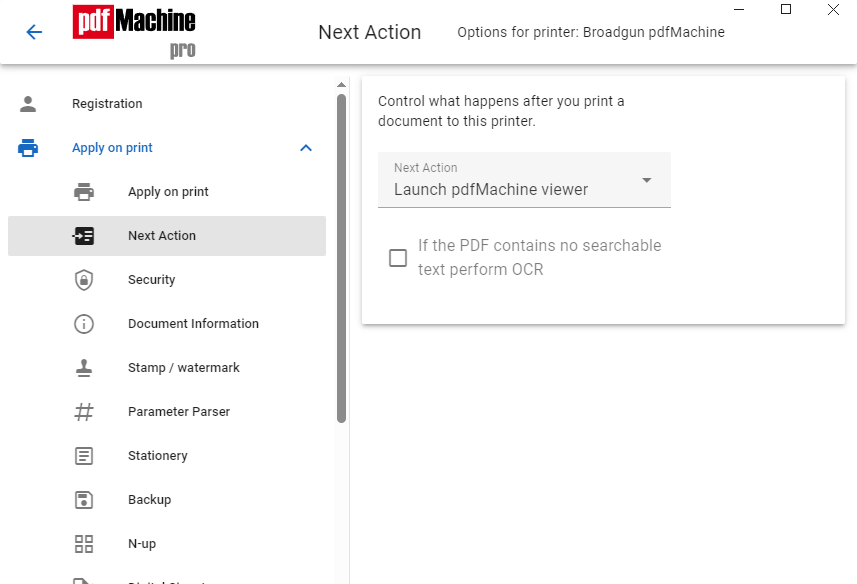
| Next Action | Controls what happens after the PDF file has been
generated.
|
||||||||||||||||
| Exec. Command | When "NextAction" is equal to "Execute the command line", this is
the command that is executed. It may contain a string such as "%s" which will be
substituted with the full path of the generated PDF file. e.g. ExecCmd = c:\winnt\notepad.exe "%s" This would launch the notepad.exe program upon completion of file generation. The notepad program would open the PDF file. |
| Use saved settings in email | If checked, the To, Cc, Bcc, Body, Subject and Extra Attach
fields will be used from the saved Email Settings. If unchecked, these fields will be blank. |
| Confirm Email Attachment Name | If checked, the user will be prompted to confirm or change the name of the PDF attachment when the "send" button is pressed. |
| Auto. Send | If checked, and an "Email To:" value is supplied the mail is sent automatically. |

| Email Fields | If set, provides default values for the default mail client when it
is launched. If the first character is an '@' then the rest of the text is taken
to be a filename and the text is read from the file. e.g. if the "Email Body" value was "@c:\body.txt" then the file c:\body.txt would be read in and this would be placed in the body of the email. For the TO, CC, BCC address fields, several addresses may appear if the addresses are comma or white space separated. Some email applications require the "SMTP:" prefix on mail addresses to send SMTP style mail. |
| To | The TO address field. e.g. info@broadgun.com |
| CC | The Carbon Copy address field. |
| BCC | The Blind Carbon Copy address field. |
| Subject | The email subject. |
| Body | The body of the email. This text may contain html tags if the send method is not Simple MAPI. |
| Send Method | Defines the mail transport. The method to choose
depends upon your environment. Supported methods are: Simple MAPI Uses the Simple MAPI API for sending emails. Most Windows based email clients support Simple MAPI. Simple MAPI does not work well with Microsoft Outlook. HTML emails are not supported. Extended MAPI This is a more sophisticated method which will bypass any security warnings that occur if Outlook is your default MAPI provider. It also supports HTML. Outlook If this method is chosen Outlook must be installed. A security warning dialog may be displayed upon automated sending. HTML may be used in the body. SMTP Use this if you wish pdfMachine to communicate directly to a SMTP server bypassing any mail client software. HTML may be used in the body. |
If SMTP is the chosen transport, the settings dialog must be configured:

| From | The email address that is placed in the "From" field. |
| Server | The domain name of the email server. Port number may optionally be specified by appending a colon followed by a number. If no port number is specified, it will default according to the Security setting below, where "TLS" defaults to port 587, "SSL" defaults to port 465, "None" defaults to port 25. |
| User | SMTP email server login username. |
| Password | SMTP email server login password. |
| Security | SMTP email connection encryption security. None = No encryption, TLS = Transport Layer Security, SSL = Secure Socket Layer. If no port number is on the server name, the default port number for the security type selected here is used. |
Example settings for SMTP via gmail
From : youraddress@gmail.com
Server : smtp.gmail.com
User : youraddress@gmail.com
Password : ****
Security : TLS
Click here for the gmail settings page.