Parameter Parsing / Embedded Commands
Parameters or "Embedded Commands" can be entered into the originating document to instruct pdfMachine on particular actions to take when printing to create a PDF. Parameter parsing makes pdfMachine the ideal product to produce PDF files from legacy applications.
For example, you can use commands such as #_ splitPDF 1 _# to create multiple PDFs from the one print job.
Or, if the text:
#_ savePDF C:\tmp\savedfile.pdf _#
appears in a document and it is printed to pdfMachine with parameter parsing enabled the file will be automatically saved to c:\tmp\savedfile.pdf and no pdfMachine user interface will be displayed.
Read more on how parameter parsing allows you to perform batch mode email merges from legacy applications.
The available parameters / commands are :
| Parameters | |
|---|---|
| Email sending | |
| SavePDF | Save to a file name |
| AppendPDF | Append a PDF |
| InsertPDF | Insert a PDF |
| OpenPass | Set the Open password |
| PermPass | Set the change permissions password |
| Stationery | Set or change the PDF stationery |
| Embed | Embed a file |
| InsertImage | Insert an image |
| SplitPDF | Split a large PDF into smaller PDFs |
| bm | Set a bookmark |
| Print PDF to another printer. This parameter only works when Adobe Reader XI or earlier is installed. |
|
| l | Link. Create a hyperlink. |
| i | Image button locator |
| ii | Insert Image |
| il | Image Link. Used to create a clickable image |
| ilqs | Image Link Query String. Used to dynamically build a url for a clickable image |
If parameter parsing is enabled, pdfMachine will parse the PDF file for any of the specified parameters
listed above and
described in detail below. These parameters control both the content of the generated PDF file (eg inserting
images,
replacing keywords with text) and the way that pdfMachine works (eg setting passwords, emailing the PDF, saving
the PDF).
This is particularly useful for integration with legacy software to do "mail merge" type operations.
WARNING: Parameters in pdfMachine can be very powerful and complex. Please test each configuration
thoroughly
before using in a production environment.
How to use Parameter Parsing
- Enable it in the options.
- Create the originating document with parameters.
- Print the document to pdfMachine by performing a File Print (or for a browser use the Extension in Chrome/Edge - see video).
Enabling parameters will slow processing of pdfMachine down a little, so don't do it unless you need them.
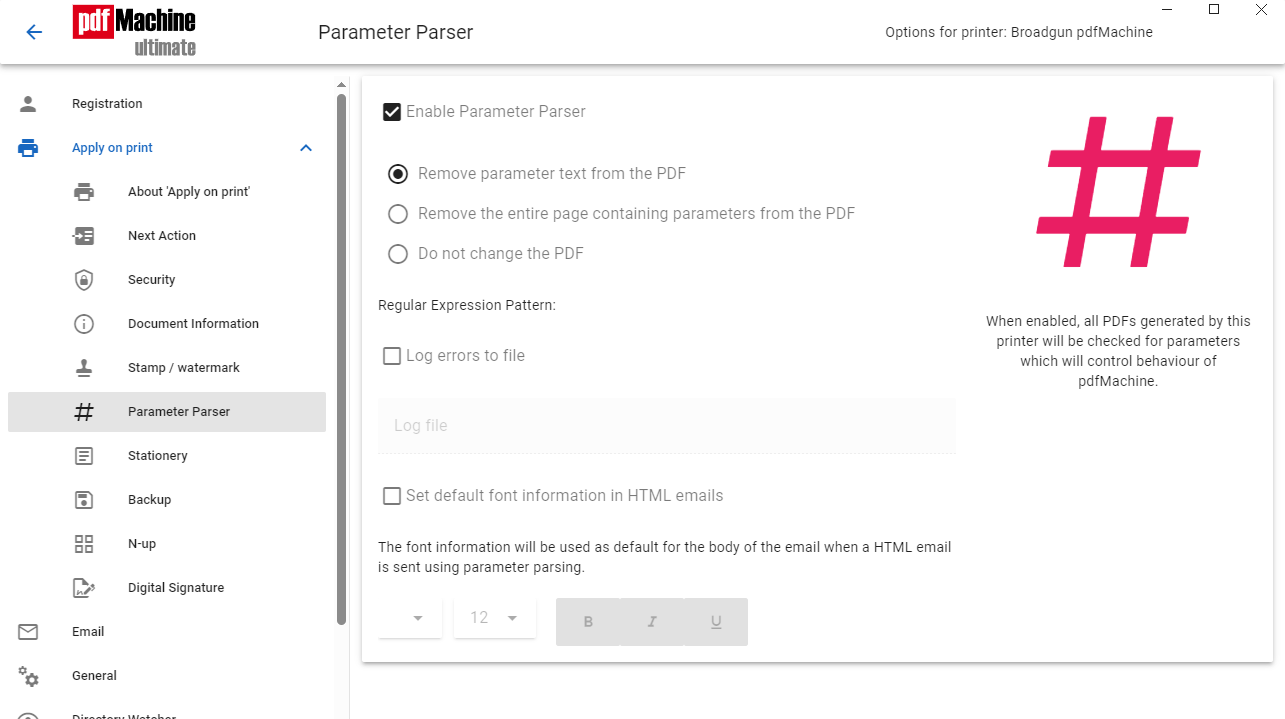
After parsing the parameters pdfMachine will either remove them from the PDF or leave in the parameters from the resultant PDF file as selected by the radio buttons in this dialog.
The parameter parsing is done using the "Perl-Compatible Regular Expressions" library developed by Philip Hazel. A regular expression is a pattern that is matched against a subject string from left to right. For a detailed explanation of regular expressions, please read: http://www.pcre.org/
The default regular expression used is: #_ (\w+) (.+?)_#
If you need to change the regular expression, it is stored under the following registry entry: HKCU\Software\pdfMachine\RegExp
We recommend this regular expression is not changed without a good understanding of regular expressions.
Should this
accidentally be changed then it can be corrected using the default regular expression described on this
page.
The default regular expression will allow parameters to be entered into the originating document in the following
format:
#_ parameter argument(s) _#
Note: A parameter and an argument list for that parameter must both be specified, even if the arguments are not used, at least 1 argument must be present. For example:
Initializing the font for HTML emails
When you use parameter parsing to send an HTML email you can set the default font information for the body of your email. The font information will be used to surround the body of the email with appropriate HTML. This is only applicable for send methods which allow HTML emails to be sent.
Error Reporting
By default errors are displayed in a message box at the end of each print. You can cause the errors to be logged to a file instead of popped as a message by enabling the "Log errors to file" checkbox.
Parameters / Commands
The parameters are not case sensitive. Choose from the parameters listed above. Descriptions of these commands follow:
Commands which relate to sending an email with the PDF Attachment
The following parameters can be used to cause pdfMachine to email the resultant PDF. See example.
| Parameter | Description |
|---|---|
|
Arguments: Comma separated list of email addresses to send to.
e.g. #_ email dave@broadgun.com _# |
|
| EmailCC |
Arguments: Comma separated list of email addresses to cc to.
e.g. #_ emailCC dave@broadgun.com _# |
| EmailBCC |
Arguments: Comma separated list of email addresses to bcc to.
e.g. #_ emailBCC dave@broadgun.com _# |
| EmailSubject |
Argument: Subject of email
Sophisticated tags and control characters can be used to include things as timestamps, auto incrementing numbers and environment variables. nb If you want to include a % in your subject it is necessary to escape it by using %%. e.g. #_ emailSubject Your invoice is attached _# e.g. #_ emailSubject Your 50%% discount has been applied _# e.g. #_ emailSubject Received today %d %B &Y _# |
| EmailBody |
Argument: Text body of email. May span across multiple lines.
e.g. #_ EmailBody Hi, Please find attached a very useful PDF file. Best Regards, The Boss. _# |
| EmailAttachmentName |
Argument: Name to use for attached PDF file
e.g. #_ emailAttachmentName invoice.pdf _# Note: Do not use the following invalid Windows filename characters as they will be removed. \ / : * ? " < > | |
| EmailNoAttachment |
Argument: 1 or 0
e.g. #_ EmailNoAttachment 1 _# Argument of 1 results in the PDF not being attached to the email Argument of 0 is the same as if this EmailNoAttachment parameter is not present. Note: Use this instead of the parameter EmailAttachmentName if you don't want the PDF attached to the email. Use it with the SavePDF parameter to save the PDF and send an email without an attachment. |
| EmailAttachmentsList |
Argument: A list of files to attach to the PDF. They must exist, and have the full path name
defined. If a folder name is specified with no actual file name then all of the files in that folder and any sub folders will be attached to the email. The list
should be separated by semi-colons with no spaces in between. e.g. #_ emailAttachmentsList c:\invoices\123.docx;c:\receipts\123.pdf _# Note: Do not use the following invalid Windows filename characters in the actual filename component as they are illegal characters for a filename and will result in an error. \ / : * ? " < & > | |
| MergeField |
Arguments: fieldname value
The MergeField parameter allows the contents of the Email to be customized to a finer detail. You can define the subject, body and/or attachment name in the pdfMachine options Email Settings screen but use placeholders which will be replaced with actual data from the parameeters when printed. The {} characters can be used as the placeholders to define field names within these. Then the MergeField parameter is used to set these field names and replace the placeholders. See example. The MergeField parameter can only be used when the Email parameter is set. The MergeField parameter must come after any parameter parsing commands that use the MergeField. The arguments are : a fieldname to replace, and the value to replace that fieldname with. The mergeField will be applied to placeholders in the EmailSubject, EmailBody and EmailAttachment name settings. e.g. #_ MergeField first_name Fred _# This will replace all occurrences of {first_name} in the subject, body or attachment name settings, with the word Fred. |
Launching the default email client with the PDF Attachment
The following parameters can be used to cause pdfMachine to prepare to email the resultant PDF. The email can then be checked or corrected before it is sent. The EmailTo parameter replaces the Email parameter. The other Email parameters described in the previous table can also be used. See example.
| Parameter | Description |
|---|---|
| EmailTo |
Arguments: Comma separated list of email addresses to send to.
This is used instead of the Email parameter described above. This prefills the email parameter but does not send the email. e.g. #_ EmailTo dave@broadgun.com _# |
| NextAction |
Arguments: 4
To launch the default email client with the prefilled values set by the parameters a NextAction of 4 should be used. NextAction is only valid to use when the EmailTo parameter is set. e.g. #_ NextAction 4 _# |
Save the PDF File
The following parameter causes pdfMachine to automatically save the resultant PDF file to the specified location.
| Parameter | Description |
|---|---|
| SavePdf |
Argument: Path to the location to save the PDF file
e.g. #_ SavePdf C:\savedFileHere.pdf _# |
Inserting or Appending PDF Files
The following parameters insert or append files into the resultant PDF file .
| Parameter | Description |
|---|---|
| AppendPdf |
Argument: Path to the PDF file that is to be appended.
e.g. #_ AppendPDF c:\somefile.pdf _# Multiple appendPdf parameters can appear in the file which will result in multiple PDFs being appended. See example |
| InsertPdf |
Argument: Page number after which to insert ( 0 to insert at the start of file), path to
the PDF file to
insert.
See example. |
Encryption
The following parameters cause pdfMachine to enable encryption and to set the appropriate passwords in the resultant PDF file.
| Parameter | Description |
|---|---|
| OpenPass |
Argument: Password required to open the document (a.k.a. user password).
e.g. #_ OpenPass mysecret _# NOTE : Set the other encryption parameters in the pdfMachine options screens. |
| PermPass |
Argument: Permissions password (a.k.a. owner password).
e.g. #_ PermPass mysecret _# NOTE : Set the other encryption parameters in the pdfMachine options screens. |
Stationery
The following parameter overrides the current pdfMachine stationery settings. There are two settings, one for all pages and one for first page only. If you want to completely control the stationery in parameter parsing then you should specifically set both of them.
| Parameter | Description | ||||||
|---|---|---|---|---|---|---|---|
| Stationery |
Arguments: pages drawn path
e.g. Set the stationery for 'all pages' to be c:\stationery.pdf and draw it on top of the page text. Any 'first page only' stationery will still be used. #_ Stationery all above c:\stationery.pdf _# e.g. Set the stationery for 'all pages' to be c:\stationery.pdf and draw it on top of the page text. Turn off any 'first page only' stationery that has been defined. #_ Stationery all above c:\stationery.pdf _# #_ Stationery first none _# e.g. Turn off all stationery. #_ Stationery none _# |
Files Attached / Embedded within the PDF
The following parameter causes pdfMachine to attach file(s) to the resultant PDF file. The attached files can be seen in the attached files list in Acrobat Reader 6 and 7.
| Parameter | Description |
|---|---|
| embed |
Argument: Path of the file to be embedded.
e.g. #_ embed C:\afile.pdf _# #_ embed C:\somefile.pdf _# Call embed multiple times to embed multiple files. See example. |
Insert Image
Insert images into the PDF. Images can be files or URLs. There are two versions of this tag. The 'InsertImage' tag works on co-ordinates relative to the tag whereas the 'InsertImage2' works on co-ordinates relative to the bottom left corner of the page.
| Parameter | Description | ||||||||||
|---|---|---|---|---|---|---|---|---|---|---|---|
| InsertImage |
Arguments: width height offsetX offsetY path
The offset is relative to the parameter parsing tag e.g. Insert an image right where this tag is in the document: #_ InsertImage 100 100 C:\somefile.jpg _# |
||||||||||
| InsertImage2 |
Arguments: width height offsetX offsetY path
The offset is relative to the bottom left corner of the page e.g. Insert an image barcode near the bottom left corner of the page #_ InsertImage2 50 50 20 50 https://broadgun.com/barcode/?bcid=code128&text=1234567890 _# |
||||||||||
Note: 1 point = 1/72th inch InsertImage can be called more than once per page. |
Split Document
| Parameter | Description |
|---|---|
| SplitPDF |
Argument: dummy argument to help regular expression parsing
e.g. #_ SplitPDF 1 _# Note the SplitPDF parameter must be followed by some other text, which is '1' in this case. Splits document at the end of the current page. This should be used with extreme caution, as it may result in multiple emails being sent for a single print job. Please be sure you do adequate testing to ensure the emails are as you wish. see example Make sure that there is no more that one SplitPDF command on a single page. This can be useful for integrating with a legacy application, or Crystal Reports solution that creates one big print job with each customer statement on a new page. e.g. An accounting application may print out a number customer invoices, one after the other in one big print job. Normally this would generated 1 large PDF. However, using a combination of "SplitPDF" and "email" parameters each customer would be emailed a unique invoice belonging to them. |
bookmark
| Parameter | Description |
|---|---|
| bm |
Argument: bookmark name\sub bookmark name
A back slash separated list of heading names, forming a table of contents or bookmark hierarchy. Bookmarks provide a table of contents and usually represent the chapters and sections in a document. Bookmarks appear in the navigation pane of adobe reader. When a bookmark is clicked, the reader will be presented with the section where the "bm" command was placed. e.g #_ bm This is a top level bookmark _# #_ bm This is a top level bookmark\sub section 1 _# #_ bm This is a top level bookmark\sub section 2\more news _# Produces PDF with a bookmarks window in Adobe Reader: 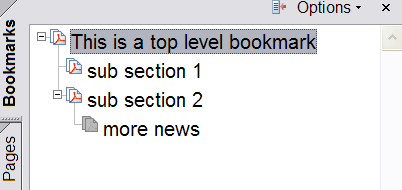
|
| Parameter | Description |
|---|---|
|
Argument: printer name
Used to print to a secondary printer. This parameter only works when Adobe Reader XI or earlier is installed. This could be useful if a hardcopy is desired as well as the PDF. If the word "default" is used for the printer name the default printer is used. e.g 1 - Print to a specific printer name #_ print HP Office Jet v49 _# e.g 2 - Print to the default printer #_ print default _# |
|
insert hyperlink
| Parameter | Description |
|---|---|
| l |
Argument: link_text URL
A hyperlink is created pointing to URL. The text 'link_text' will remain. e.g #_ l link to broadgun http://www.broadgun.com _# #_ l hi there http://www.google.com _# |
image button locator
The 'i' parameter defines the position of the image that will be inserted into the PDF by the 'ii' command.
| Parameter | Description |
|---|---|
| i |
Argument: tag
A tag name that is used by the ii, il and ilqs commands. e.g #_ i 1 _# A complete example |
insert image
Inserts an image into the PDF. The image is inserted at the location defined by the 'i' command.
| Parameter | Description |
|---|---|
| ii |
Arguments: tag width URL
tag - An alphanumeric string that refers to the image location previously defined by the 'i' command. width - Optional. The width of the image in points. URL - Can be a http or https URL or a file path on the local PC. File types supported are: gif, png, jpg, bmp. e.g.1 #_ ii 1 100 https://www.broadgun.com/somepic.png _# e.g.2 #_ ii 2 c:\tmp\somepic.jpg _# A complete example |
image link
Inserts a hyperlink into the PDF. The position and size is defined previously by the 'i' and 'ii' commands.
| Parameter | Description |
|---|---|
| il |
Arguments: tag URL
tag - An alphanumeric string that refers to the image location previously defined by the 'i' command. URL - Can be a http or https URL. e.g. #_ il https://www.broadgun.com _# A complete example |
image link query string
Used to build a query string for a URL. The base of the URL is defined by the 'il' command. Several 'ilqs' commands can appear all relating to the same URL.
| Parameter | Description |
|---|---|
| ilqs |
Arguments: tag name value
tag - An alphanumeric string that refers to the image location previously defined by the 'i' command. name - Parameter name. This will be URL parameter encoded. value - Parameter value. This will be URL parameter encoded. A complete example |
Examples
Sending an email with the PDF attached
Print the following text to pdfMachine to send an email to user@broadgun.com, with the attachment called
"mypdf.pdf" and the subject "pdfMachine is great" and the body "Hi, Please have a look
at the
attachment." (spread over 2 lines).
|
#_ email user@broadgun.com _#
#_ emailSubject pdfMachine is great _# #_ EmailAttachmentName mypdf.pdf _# #_ EmailBody Hi, Please have a look at the attachment. _# This is the attachment text, it will appear in the PDF. |
Sending an email without the PDF attached
Print the following text to pdfMachine to save the file as "x:\mydir\myPDF.pdf" and send an email to user@broadgun.com without the PDF attached
|
#_ email user@broadgun.com _#
#_ emailSubject Your PDF has been saved _# #_ SavePDF x:\mydir\myPDF.pdf _# #_ EmailNoAttachment 1 _# #_ EmailBody Hi, You will find your file at x:\mydir\myPDF.pdf. _# This is the text, it will appear in the PDF. |
Launch the compose email window with the PDF as an attachment
Print the following text to pdfMachine to launch the default email client without actually sending the email. The PDF will be an attachment to the email.
|
#_ emailTo user@broadgun.com _#
#_ NextAction 4 _# #_ emailSubject pdfMachine is great _# #_ EmailAttachmentName mypdf.pdf _# #_ EmailBody Hi, Please have a look at the attachment. _# This is the attachment text, it will appear in the PDF. |
Sending an email with the PDF Attachment using the MergeField parameter
You can either:
Set the pdfMachine options to have the email configuration (as below):
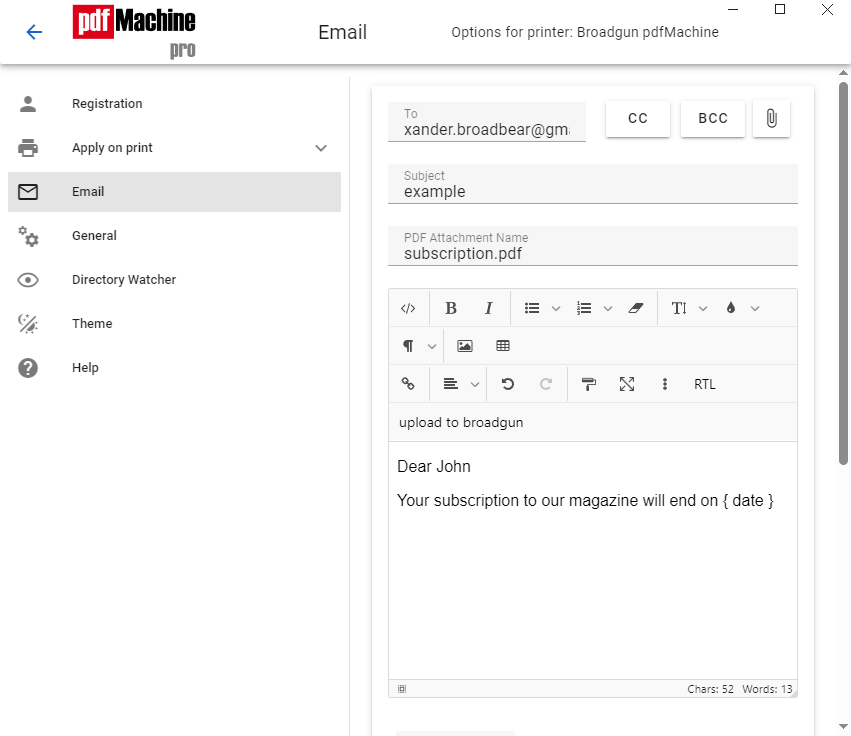
Then print the following text to pdfMachine. The MergeField parameter must come after any parameter parsing commands that use the MergeField. This will send an email to john@yourserver.com, with the attachment called "subscription.pdf" and the subject "Subscription expires on 1st March 2006" and the body "Dear John Your subscription to our magazine will expire on 1st March 2006" (spread over 2 lines).
|
#_ email john@yourserver.com _#
#_ EmailAttachmentName subscription.pdf _#
|
Or you can do the whole thing using parameter parsing. You do not need to setup all of the details in the Email Configuration options. The MergeField parameter must come after any parameter parsing commands that use the MergeField. You can print the following text to pdfMachine to send an email to john@yourserver.com, with the attachment called "subscription.pdf" and the subject "Subscription expires on 1st March 2019" and the body "Dear John Your subscription to our magazine will expire on 1st March 2019" (spread over 2 lines).
|
#_ email john@yourserver.com _#
#_ EmailAttachmentName subscription.pdf _#
Your subscription to our magazine will expire on {expiry_date}. _#
#_ Mergefield first_name John _#
|
Append an existing PDF file after the PDF is created
Print the following text to pdfMachine to append the contents of the file 'one.PDF' and 'two.pdf' into the resultant PDF.
|
#_ appendPdf c:\one.pdf _#
#_ appendPdf c:\two.pdf _# Put any text here , this forms the main pdf. |
Insert an existing PDF file to the front of the PDF created
Print the following text to pdfMachine to insert the contents of the file otherPDF.PDF into the start of the created PDF.
|
#_ insertPDF 0 c:\PDFs\otherPDF.pdf _#
Put any text here - this will appear after the contents of the file otherPDF.pdf |
Attaching/Embedding files
Print the following text to pdfMachine to embed files in the resultant PDF.
|
#_ embed c:\somefile.txt _#
#_ embed c:\anotherfile.txt _# Put any text here - this will appear as the contents of the PDF file. The PDF file will have an "attachments" window containing the two text files. |
Splitting single print job into multiple emailed documents - splitPDF
Print the following text to pdfMachine to send two emails.
|
#_ email john@yourserver.com _#
Customer Name: John
..
(make sure there is a page break before this next text)
#_ email dave@yourserver.com _#
Customer Name: Dave
|
Splitting single print job into multiple documents - splitPDF, savePDF
Print the following text to pdfMachine to save the document as two separate PDFs.
|
#_ splitPDF 1 _# #_ savePDF c:\path\john.pdf _#
Customer Name: John
..
(make sure there is a page break before this next text)
#_ savePDF c:\path\dave.pdf _#
Customer Name: Dave
|
Insert an image with a clickable link
Print the following text to pdfMachine to insert an imag3e with a clickable link.
|
Place the following where you want the image to be placed
#_ i 1 _#
..
(make sure there is a page break before this next text)
#_ ii 1 https://your-domain/your-image.png _# 'insert image' command. |