Shared Printers
You can install and configure pdfMachine on a network printer (the print server). Clients can then easily install using Point and Print, by connecting to the network printer. When clients first connect to pdfMachine on the print server they will install the version of pdfMachine installed on the print server.
New versions installed on the print server will be automatically detected on the client at login time.
Advantages of installing pdfMachine using Point and Print are:
- Installation of the clients can be done from a "regular" user account, unlike a standalone install that requires an Administrator account.
- New versions can be easily rolled out by installing on the print server. New versions of pdfMachine installed on the print server will be automatically detected and installed on the client some time after the next login.
Disadvantages of installing pdfMachine using Point and Print are:
- Due to the Windows requirement of Package Aware Printing, if you want anything but the default installation then you must build a customized installer to set any non-default options you want propagated to shared devices require a personalized package. Similarly, if you want to install multiple pdfMachine printers. These customized installers must be built using the pdfMachine configurator with the INI setting of isShared=1. More information on customized installations is available here).
Notes:
Shared printing does not change the
licensing of pdfMachine. Each user requires their own license. Read the license agreement for specific details.
Changes to the pdfMachine options on the server after the client has been installed will not be reflected on the client.
Package Aware V3 Printer Driver
pdfMachine is a Package Aware V3 Printer Driver. The pdfMachine driver is digitally signed using the "COMODO RSA Certification Authority" certificate. Comodo is a universally trusted Certificate Authority whose roots are included in all major trust stores.
Steps
To implement Point and Print in your environment you need to:
1. Install pdfMachine on the Print Server with the shared printer option checked, or with an installer produced using the pdfMachine configurator with the INI setting of isShared=1.
2. Connect to the Print Server from a client.
When you install a new version of pdfMachine on the print server the clients that are connected to that printer will automatically detect and install the new version some time after the next login.
Step 1. Installation on the Print Server
To enable Point and Print a machine needs to be designated the "print server". This machine must be running either Windows 2012 / 2016 / 2019 / 10 / 11. It is important that this server machine have enough Microsoft Client Access Licenses for each user that wants to connect. A normal stand alone installation is performed on this machine, with the "share this printer on the network" checkbox ticked in the setup program dialog box. Alternatively a customized installer can be built using the pdfMachine configurator with the INI setting of isShared=1.
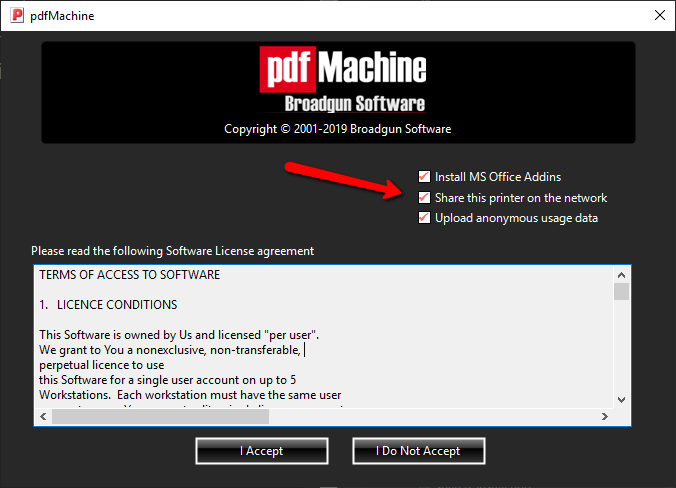
Checking the "Share this printer on the network" box will set a new pdfMachine printer being installed as shared.
If you have already installed pdfMachine and you subsequently decide you want to set it up as a shared printer you must run the installer on the server again with the shared checkbox checked.
Step 3. Connecting a client to the print server
There are many ways to connect a client to the print server :
Add Printer Wizard
Under the "printers & faxes" or "printers" in settings or control panel you will notice an "Add Printer" icon. This launches a wizard that allows you to connect to a pdfMachine printer that has been installed as shared on the network.
Right Click and Connect to the Printer from within Explorer
Start Explorer up, find the "print server" machine, then look in the "printers" folder. Right click on the pdfMachine printer and select "connect".
From the start menu, run \\servername\sharename
This is perhaps the easiest way. Click on the "Start" menu, then select the "run" icon. Then enter in the printer share name. e.g. if the server is called "bigserver" and the pdfMachine share name is "pdfmachn" then you would enter \\bigserver\pdfmachn
Web Server Install
If Microsoft IIS is installed, pdfMachine can be installed over a web browser. e.g. type in the browser the address http://servername/printers and select the pdfMachine printer. pdfMachine will then be installed.
Installing a new version of pdfMachine in a shared printer environment
To update to a new version of pdfMachine, just install it on the print server. Make sure you check the shared box while installing. The new version will be installed on the clients some time after the user next logs in.
Troubleshooting
The options I have set in pdfMachine on my print server are not showing in the client.
pdfMachine prints as a Version 3 Package Aware Printer. Customized installs are achieved by using the pdfMachine configurator with the INI setting of isShared=1 for shared printing. Up-to-date version protection is required as installers can only be build for the current version of pdfMachine.
Options set in the print server are only initialised in the client when the client first connects to the print server. After that the options can be customised for pdfMachine at the client level. These will not be overwritten by changes in the options on the print server. Uninstall as a regular user on the client or disconnect the printer at the client end and reconnect to get the options set using the latest installer.
I need to get the options from the print server again
If you need to reset the options to that of the print server you can remove the device (or run the uninstaller as a regular user) from the client workstation. Reconnect to the device from the print server (step 3) to reset the options to those set by the print server installer.
I forgot to install the printer as shared.
Run the installation program again making sure you check the box to share the printer. This is necessary to make sure the correct drivers are installed. Perform steps 1 to 3 again.